Classroom 7x games usually start in a few seconds, but now and then one gets stuck on a black screen, lags, or ignores your keyboard. The good news is that most problems have a quick fix that takes less than a minute.
This guide walks through the most common issues on Classroom 7x, from games that will not load to lost favorites, in the order you should try them.
Start Here: The 30-Second Fix
- Refresh the page and press Play again. This fixes most stuck or half-loaded games.
- Wait a few seconds. Bigger 3D games need a moment to download before they start.
- Close extra tabs. Videos and heavy pages use memory that the game needs.
- Try the New tab button. Every game page has an Open in new tab button if a game has trouble running inside the page.
Still stuck? Try a different game. If every game fails, the problem is probably your connection or browser, not one game.
Black Screen or Endless Loading
A black or blank game window usually means the game files did not finish downloading, or your browser is out of date.
- Update your browser. Older versions of Chrome, Edge, Firefox or Safari may not support newer games. On a Chromebook, check Settings, About ChromeOS.
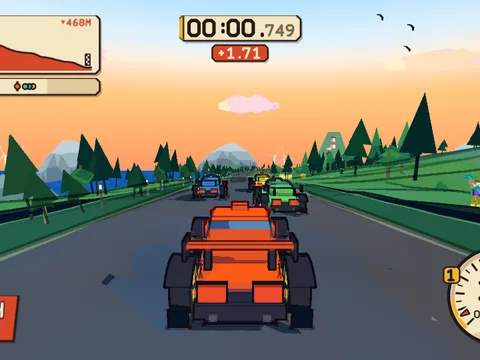
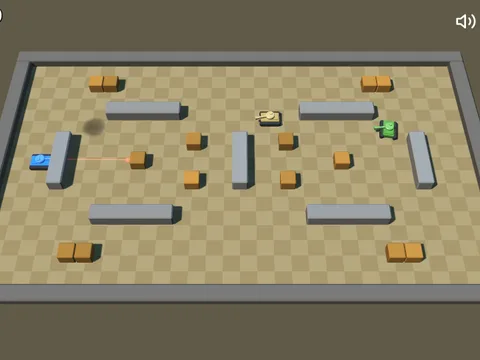
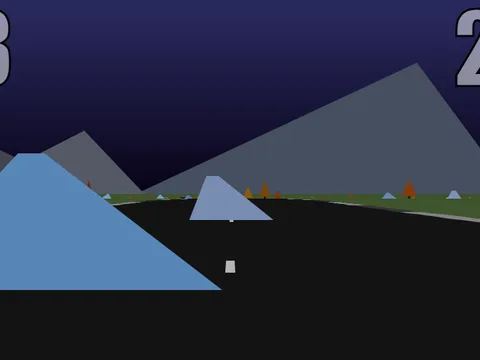
- Check your connection. 3D games like Red Rock Descent and Tank Ricochet need more data to start than small 2D games.
- Restart the device. If your Chromebook or laptop has been on for days, a restart clears out slowdowns.
The Site Is Blocked on My Network
Schools and workplaces sometimes block game sites. If your school network blocks Classroom 7x, follow your school's rules and play at home instead. We do not help anyone get around network filters.
Game Is Laggy or Slow
- Close other tabs and apps, especially video and music sites.
- Plug in your laptop. Some Chromebooks slow down to save battery.
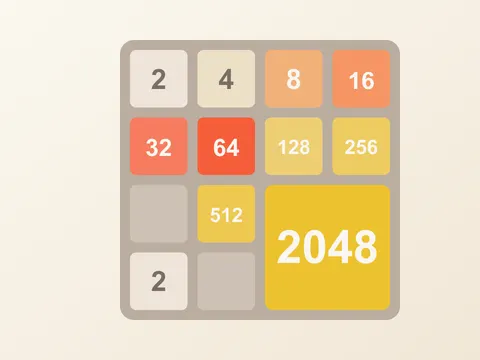
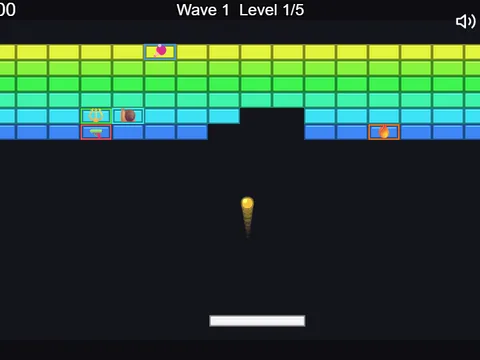
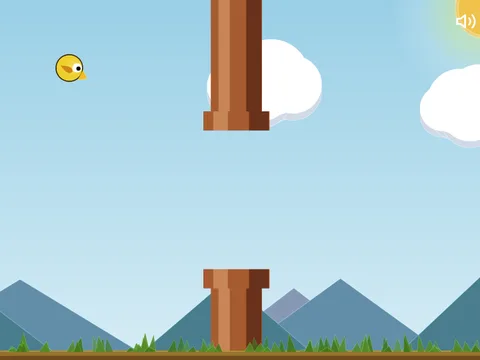
- Choose lighter games on older devices. Simple 2D titles like 2048, Brick Smash or Pipe Flapper run smoothly on most school Chromebooks.
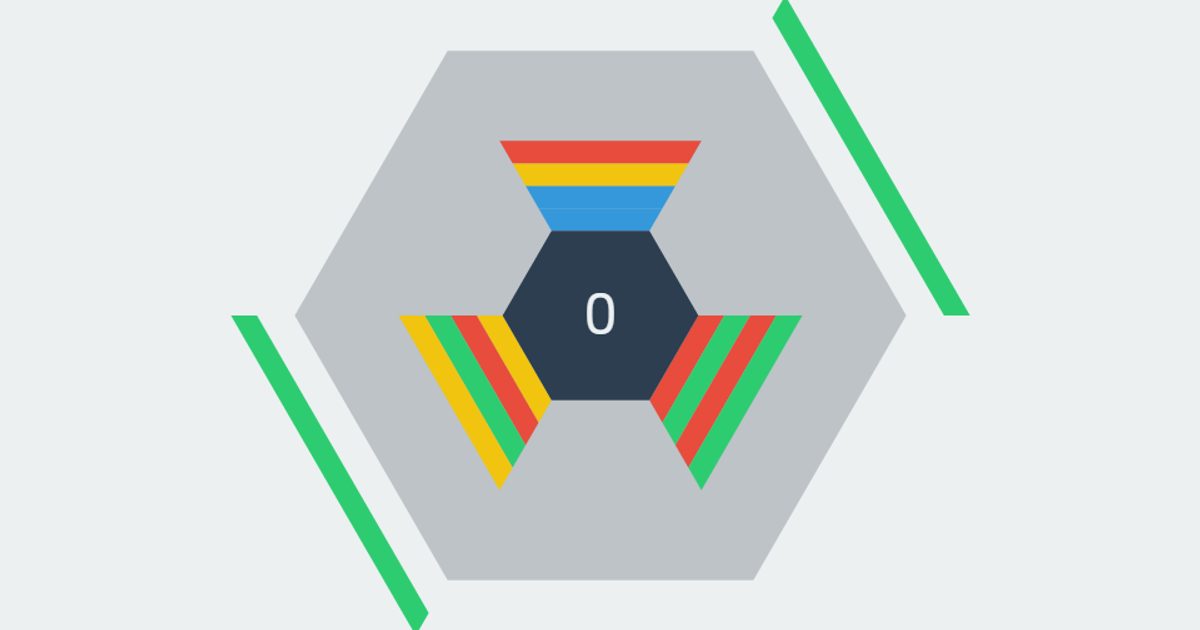
- 3D games such as Hue Jumper and Red Rock Descent need the most power. If one stutters, exit fullscreen, because a smaller window has fewer pixels to draw.
Our Chromebook games guide has more performance tips and a list of games that run well on low-power devices.
Keys or Mouse Not Working
If the arrow keys scroll the page instead of moving your character, the game window does not have focus. Click once inside the game, then press your keys again.
- Check the Controls section on the game page. Some games use W, A, S and D, others use the arrow keys, and some, like Hue Jumper, are steered with the mouse.
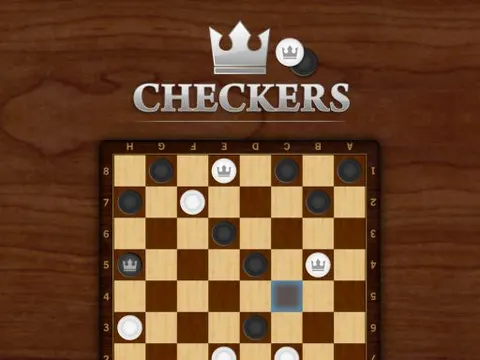
- Board games such as Checkers are played with clicks or taps. Click your piece first, then the square you want.
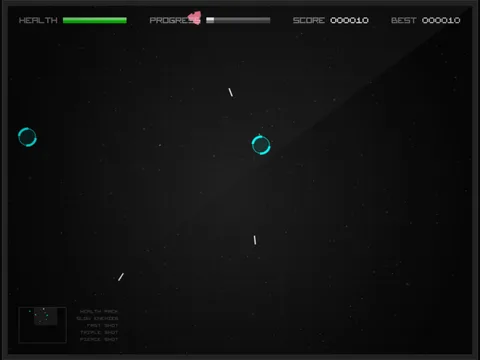
- On phones and tablets, look for games that list touch controls. A few games, such as Radius Raid, need a keyboard and mouse.
No Sound
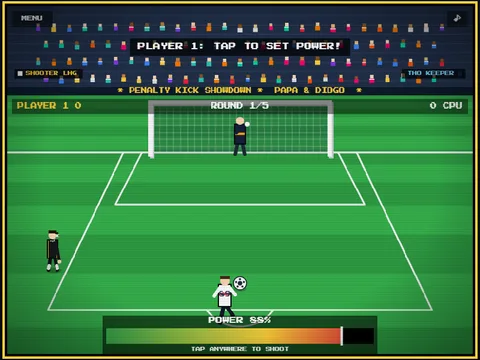
Browsers often keep audio muted until you click on the page. Click inside the game once, check that the tab is not muted, and look for a sound button in the game's own menu. Some games also have a mute key. In Penalty Kick Showdown, for example, M turns the sound on and off.
My Favorites or Progress Disappeared
Classroom 7x has no accounts, so your favorites and recently played list are saved in your own browser. They will not appear if you switch devices, use a different browser, open a private window, or clear your browsing data. Games that remember your progress usually save it in your browser the same way.
Use the same browser and device, and avoid private or guest windows, if you want your My Games list to stay put.
Still Not Working? Tell Us
If a specific game is broken for everyone, we want to know. Send the game name, your device and your browser through our contact page and we will check it. In the meantime, browse all Classroom 7x games to find something else to play.
Frequently Asked Questions
Why is Classroom 7x not loading?
Usually the page or game did not finish loading. Refresh the page, close extra tabs, update your browser and try again. If every game fails, check your internet connection or try a different browser.
Why does a game show a black screen?
A black screen normally means the game files are still downloading or your browser is out of date. Wait a few seconds, refresh, update your browser, or use the Open in new tab button on the game page.
Why are my keys not working in the game?
The game window probably does not have focus. Click once inside the game and press your keys again. Also check the Controls section on the game page to make sure you are using the right keys.
Where did my favorite games go?
Favorites are saved in your own browser, not in an account. They will not show up on a different device or browser, in a private window, or after clearing your browsing data.