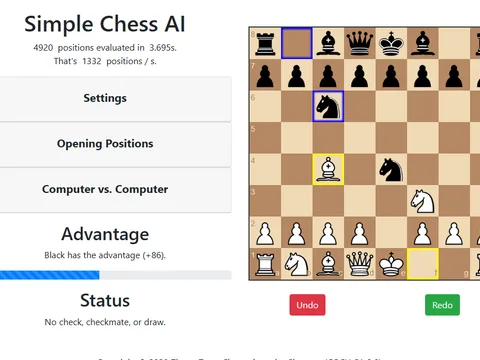
You move first, the engine thinks, and then Black strikes back. Chess vs Computer unblocked gives you a patient practice partner that you can make gentle or tough with one setting. The game is served from Classroom 7x's own servers, so it opens in Chrome on a school Chromebook with no download and no account needed.
About Chess vs Computer
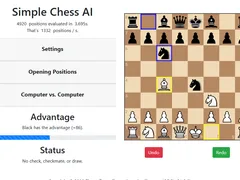
Zhang Zeyu wrote this engine as an open-source project, and it plays real chess with every standard rule, including castling and en passant. To pick a move, it runs a minimax search sped up by alpha-beta pruning, a method that tests possible moves and drops weak branches early. Each position gets a score based on piece values and where the pieces stand. After every reply, the panel reports the number of positions it looked at and the time it needed.
You always command White. A Settings panel lets you pick how deep Black searches, from 1 to 5 half-moves, with 3 as the starting value. You can also switch on a suggested move for White, which outlines the engine's favorite choice for you in red. Buttons load the Ruy Lopez, Italian Game or Sicilian Defense so you can practice those lines. There is even a mode where the computer plays both sides while you watch.
How to Play Chess vs Computer
- Drag one of your white pieces to a new square and let go; illegal moves snap back to where they started.
- Wait a moment while the engine searches, then study Black's reply, which is outlined in blue on the board.
- Check the Status line for warnings about check and for the final result when the game ends.
- Open Settings to raise or lower the search depth, or tick the box that shows a suggested move.
- Press Undo to take back your move and the computer's answer, then try a different idea.
Chess vs Computer Controls
| Input | Action |
|---|---|
| Mouse drag | Pick up a piece and drop it on a legal square |
| Mouse hover | Shade the legal squares for one of your pieces |
| Undo / Redo buttons | Move one full turn (two half-moves) back or forward in the game |
| Settings panel | Change the engine depth or turn on the suggested move |
| Opening Positions buttons | Load a preset opening or reset to the normal start |
| Finger drag (touch screens) | Move pieces on a tablet or phone |
How to Play Chess vs Computer on PC & Chromebook
A mouse is the most comfortable way to play this chess game on a laptop, desktop or Chromebook. Hovering over a piece shades every square it can reach, which helps a lot while you learn. The board, the score bar and the settings sit side by side on a wide screen, so you can watch the engine's numbers while you plan your next move.
- Let the page load, then glance at the Settings panel and pick a search depth that matches your level.
- Hover over a white piece to see its legal squares, then drag it to the one you want.
- Watch for the blue outline that marks Black's reply, and read the Status line for check warnings.
- Use Undo whenever a move goes wrong, and try the opening buttons when you want a fresh start.
Desktop tip: Higher depths can make the page pause while the engine thinks. Give it a few seconds before clicking again, especially at depth 4 or 5.
How to Play Chess vs Computer on Mobile
You can play this chess game on a phone or tablet by dragging pieces with your finger. There is no hover on a touch screen, though, so you will not see the shaded legal squares. On a narrow screen the menus stack on top of the board, which means you need to scroll inside the game frame to reach it. A tablet turned sideways gives the most room.
- Turn your tablet or phone sideways so the board and the panels have more space.
- Scroll down inside the game area until the whole board is in view.
- Press and drag a piece with your finger, then lift it on the square you want.
- Tap Undo or open Settings when you need them, then scroll back to the board.
Mobile tip: Drag slowly and lift your finger only when the piece is centered on the target square, so it does not snap back by mistake.
Tips and Tricks
- Begin at depth 1 or 2 until you win a few games, then raise the depth one step at a time as your play improves.
- Keep an eye on the Advantage bar after each move. A sudden swing toward Black usually means you left a piece unprotected.
- Pawns that reach the last rank always turn into a queen here, so you never have to plan for any other promotion choice.
- When you lose material, press Undo right away and look for the move the engine punished. Replaying that moment teaches more than starting over.
- Load the Sicilian Defense button and play it several times in a row to get used to the sharp middle games it creates.
Game Info
| Game | Chess vs Computer |
|---|---|
| Developer | Zhang Zeyu |
| Genre | Card & Board, Strategy |
| Players | Single player |
| Works on | Chromebook, PC and Mac (touch screens work, mouse is more precise) |
| Price | Free, no sign-up |
| Hosting | Served from Classroom 7x's own servers |
| License | MIT (original source, license, credits) |
Chess vs Computer FAQ
How do I make the computer easier or harder?
Open Settings and change the search depth for Black. At depth 1, the computer considers nothing beyond its own next move, but depth 5 searches several half-moves ahead. Deeper settings play stronger chess and take longer to reply.
Can I play as Black?
No. You always play White and move first. If you want to watch Black's side in action, you can set the computer to play both colors and follow the game from the sidelines.
What are the colored outlines on the squares?
Yellow marks your last move and blue marks the computer's reply. A red outline appears only when the suggested move setting is on, showing the start and end squares the engine recommends for White.