Corners are usually the safest squares in reversi, but not here. Universal Reversi unblocked wraps every line around the edges, so a disc anywhere can be flanked. That small twist makes an old board game feel new again. Classroom 7x runs it from its own servers, so you can play in Chrome on a Chromebook with no download and no account.
About Universal Reversi
Norbert Nopper built Universal Reversi as a single web page, with the board and discs drawn in CSS. The rules follow the classic disc-flipping game. Each disc you place must close off a straight line of your opponent's discs, with one of your own discs at the far end, and every trapped disc turns to your color. The difference is that rows, columns and diagonals continue across the borders. A line that leaves the right side comes back on the left.
You can choose a 6x6, 8x8 or 10x10 board. You can play another person on the same device, take on the computer as either color, or watch two computer players face off. The five levels run from Very Easy, which picks random moves, to Extra Hard, which searches deepest. A delay slider slows the computer down, and an accessibility mode switches to flat black and white discs with thick rings that are easier to tell apart.
How to Play Universal Reversi
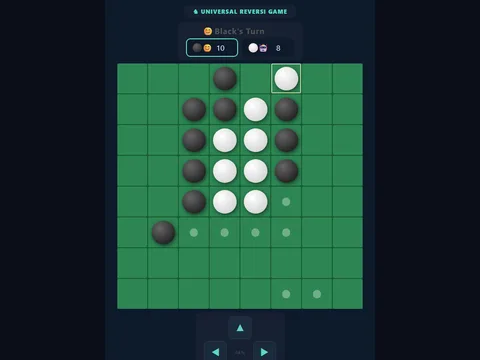
- Look for the small dots on the board, which mark every cell where you are allowed to place a disc.
- Click or tap a dotted cell to place your disc and flip every enemy disc trapped in a line.
- Remember that lines continue across the edges, so check the far side of the board for captures.
- When no legal move is open to you, you lose that turn and your opponent moves a second time.
- Keep going until neither side can move; whoever has more discs on the board wins.
Universal Reversi Controls
| Input | Action |
|---|---|
| Click / tap a dotted cell | Place a disc |
| Arrow keys or PAN buttons | Shift the view of the wrapping board |
| Reset Game button | Start a new game and apply your settings |
| Game Settings panel | Change players, starting color, board size or difficulty |
How to Play Universal Reversi on PC & Chromebook
On a computer, Universal Reversi is a calm click-to-play board game. Your mouse places discs, and the arrow keys shift the view so you can follow lines that wrap across the edges. The settings panels sit beside the board, where you can choose board size, players and difficulty. Remember to press Reset Game after changing any of the main settings.
- Open Game Settings, pick players, board size and difficulty, then click Reset Game.
- Click any cell with a dot to place your disc and flip trapped discs.
- Press the arrow keys to slide the board and check wrapped lines.
- Watch the computer's move, then plan your next placement from the new dots.
Desktop tip: Turn on the move dots and flip animations while learning. They make it much easier to see why each disc changed color.
How to Play Universal Reversi on Mobile
Universal Reversi works nicely on phones and tablets, since every move is a single tap. The board is laid out tall, so it fits a phone held upright. Instead of arrow keys, you tap the PAN arrow buttons to shift the wrapped board. Two friends can also pass one device between them and play a full game together.
- Hold your phone upright and set your options in the Game Settings panel.
- Tap Reset Game to start with those settings.
- Tap a cell marked with a dot to place your disc.
- Use the PAN buttons to slide the board when you need to see a wrapped line.
Mobile tip: Pick the 6x6 board on a small phone. The cells are bigger, so it is easier to tap the exact spot you want.
Tips and Tricks
- Before you count flips, use the arrow keys to slide the board until a line that wraps across an edge appears whole on screen.
- Early in the game, try to leave yourself more possible moves than your opponent rather than grabbing the most discs.
- Remember that corners offer no protection on this board. A corner disc can still be flanked through the opposite edges.
- Raise the computer delay toward 2 seconds while learning. That way you can see exactly which of your discs it flips on every move.
- Study the move dots while the computer is thinking. They show its options, which hints at what it may do next.
Game Info
| Game | Universal Reversi |
|---|---|
| Developer | Norbert Nopper |
| Genre | Card & Board, 2 Player |
| Players | 1 or 2 players |
| Works on | Chromebook, PC, Mac, tablet and phone |
| Price | Free, no sign-up |
| Hosting | Served from Classroom 7x's own servers |
| License | MIT (original source, license, credits) |
Universal Reversi FAQ
Why do my new settings not show up?
Press Reset Game to apply new settings for board size, difficulty, starting color or players. Runtime options, such as the computer delay and the move dots, apply right away without a reset.
How hard is the computer?
It depends on the level. Very Easy plays random legal moves, and Easy grabs whatever flips the most discs right now. Medium, Hard and Extra Hard look ahead at replies, each one searching a step deeper.
Can two people play on one computer?
Yes. Choose the two-player setup in Game Settings and press Reset Game. You then take turns placing discs on the same screen, passing the mouse or the device back and forth.