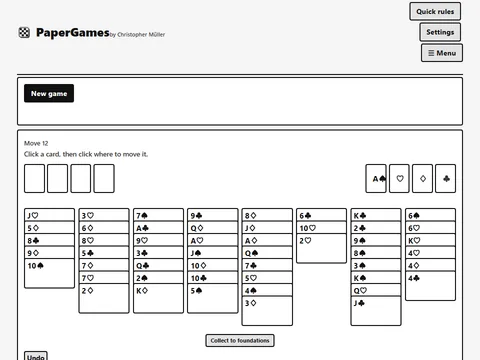
Nothing is hidden in this card game. All 52 cards start face up, so success depends on planning, not luck. FreeCell Solitaire unblocked gives you eight columns, four parking spots and plenty of room to think ahead. It runs on Classroom 7x straight from the browser, with no download or account, which makes it easy to pick up between classes.
About FreeCell Solitaire
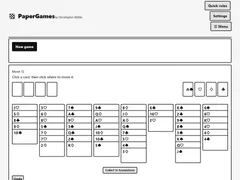
This FreeCell comes from PaperGames, an open-source card and board collection by Christopher Müller. The deck is shuffled into eight columns: the first four hold seven cards each, and the last four hold six. Above them sit four free cells, each able to hold one card, and four foundations that build up by suit from Ace to King. You win by moving all 52 cards to the foundations, and a Cleared message marks the finish.
Cards in the columns stack downward in alternating colors, such as a black 8 on a red 9. You can move a run of several cards at once, as long as you have enough empty free cells and columns to make it legal. A Collect to foundations button sends every playable card home in one step. Undo works as far back as you like, and your current deal is saved in the browser between visits.
How to Play FreeCell Solitaire
- Scan the whole layout first and find where the Aces and 2s are buried.
- Move a card onto a column card one rank higher and the opposite color, like a red 6 on a black 7.
- Park a single card in an empty free cell when it blocks something you need underneath.
- Fill an empty column with any card or a legal run to open up new moves.
- Build each foundation from Ace to King by suit, and press Collect to foundations when several cards are ready.
FreeCell Solitaire Controls
| Input | Action |
|---|---|
| Click a card | Select a card, a run or a free-cell card |
| Click a column, cell or foundation | Move the selected cards there |
| Tab, then Enter or Space | Select and move cards with the keyboard |
| Collect to foundations | Send every playable card home at once |
| Undo / New game | Step back, or deal again (New game may be under Menu) |
| Tap (touch screens) | Tap a card, then tap its destination |
How to Play FreeCell Solitaire on PC & Chromebook
FreeCell Solitaire suits a Chromebook or laptop well, because you can see all eight columns and the free cells at once. You move cards by clicking, not dragging: click a card, then click where it goes. Keyboard players can use Tab to reach cards and piles and Enter or Space to choose them. Settings let you change text size, contrast and spacing.
- Open the game and look over all eight columns before moving.
- Click a card or run, then click a column, free cell or foundation.
- Click Collect to foundations when several cards are ready to go home.
- Click Undo to back up, or open Menu and choose New game.
Desktop tip: Before each move, count your empty free cells. Knowing how many cards you can shift saves you from trying a run that is too long.
How to Play FreeCell Solitaire on Mobile
FreeCell Solitaire is easy to play on a phone or tablet. Every move is tap then tap, so you never have to drag small cards across the screen. Tap the card you want, then tap the column, free cell or foundation where it belongs. Your current game is saved in the browser, so you can leave and come back to the same deal later.
- Open FreeCell Solitaire on your phone or tablet.
- Tap a card, then tap the spot where you want it to go.
- Tap Collect to foundations to clear ready cards in one step.
- Tap Undo whenever a move does not work out.
Mobile tip: Hold your phone sideways if the columns feel cramped, and raise the text size in settings so the ranks are easy to read.
Tips and Tricks
- Treat free cells as a last resort. Every empty cell lets you move a longer run, so filling them early quietly shrinks your options.
- Work hard to empty a column. An open column doubles the size of the run you can move and is worth more than a free cell.
- Plan the order for freeing Aces before your first move. Since every card is visible, you can count how many cards sit on top of each.
- Build long runs of alternating colors when you can. A tidy run can travel together later when you need to rearrange a column.
- Use Undo to test ideas. FreeCell rewards trying a line of moves, backing up, and choosing the path that leaves the most space.
Game Info
| Game | FreeCell Solitaire |
|---|---|
| Developer | Christopher Müller |
| Genre | Card & Board |
| Players | Single player |
| Works on | Chromebook, PC, Mac, tablet and phone |
| Price | Free, no sign-up |
| Hosting | Served from Classroom 7x's own servers |
| License | MIT (original source, license, credits) |
FreeCell Solitaire FAQ
How many cards can I move in one go?
It depends on your empty spaces. Start with the count of open free cells plus one, and multiply by two for every empty column you are not moving into. Three open cells and no empty column let you move four cards.
Can every deal be won?
Each deal is shuffled at random, and nothing guarantees it can be solved. Almost every FreeCell deal does have a solution, though, so when you get stuck, step back with Undo and try another path.
Can I undo the Collect button?
Yes. A single Undo returns all the cards that Collect sent home to their earlier spots. When no card is able to go home, pressing Collect just shows a message and nothing moves.