Chromebooks are built around the Chrome browser, and that makes them a natural fit for browser games. There is nothing to install, and most games load in seconds. You just open a page and play.
This guide covers why browser games suit Chromebooks, simple ways to keep them running smoothly, which games work best with a keyboard or a touchscreen, 10 recommended picks on Classroom 7x, and what to try when a game will not load.
Why Browser Games Are Perfect for Chromebooks
Most Chromebooks are designed to be light, fast and simple. Instead of running big downloaded programs, they do most of their work inside Chrome. Browser games are made for exactly that kind of setup.
- No installs: games run inside a tab, so you do not need extra storage space.
- Quick to start: open the page, click play and you are in.
- Easy to switch: close the tab when you are done and nothing is left behind.
- Works across devices: the same game runs on other computers with a modern browser.
Many Chromebooks used in schools have modest hardware, so lighter games tend to feel the smoothest. Simple 2D games, puzzles and arcade classics are usually the safest bet, while some 3D games may run better on newer models.
Performance Tips for Smooth Chromebook Gaming
A few small habits can make a big difference in how well games run on a Chromebook.
- Close extra tabs. Every open tab uses memory. Closing videos and heavy pages frees up power for your game.
- Keep Chrome OS updated. Updates often include browser improvements. Check for updates in Settings under About ChromeOS.
- Restart now and then. If your Chromebook has been on for days, a restart can clear out slowdowns.
- Use fullscreen. Many games offer a fullscreen button, which gives you a bigger view and fewer distractions.
- Click to focus. Click once inside the game before pressing keys, so the game receives your input instead of the page.
- Plug in when you can. Some Chromebooks save power on battery, which can affect performance.
If arrow keys scroll the page instead of moving your character, click inside the game window and try again.
Keyboard Games vs Touch Games on Chromebook
Many Chromebooks have a touchscreen, and some fold into tablet mode. That opens up two ways to play, and some games suit one better than the other.
Best with a keyboard
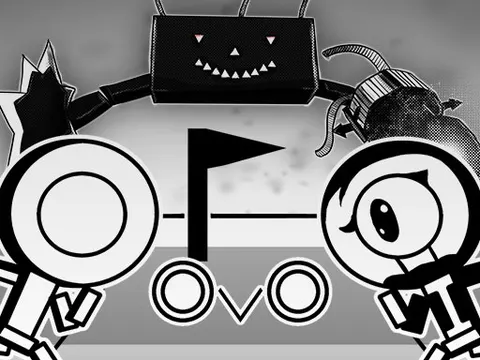
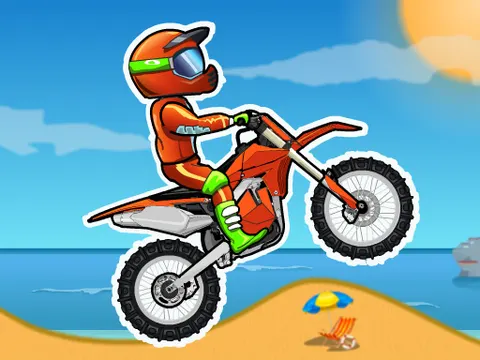
Platformers and racing games need fast, precise inputs, so a keyboard is the better choice. Games like OvO and Moto X3M feel much more responsive with physical keys. Keyboard play is also the only way to enjoy 2 player games on one Chromebook.
Great with touch
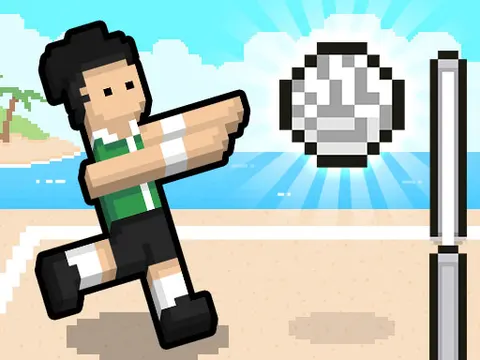
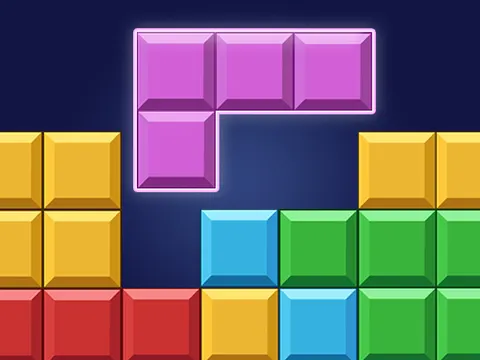
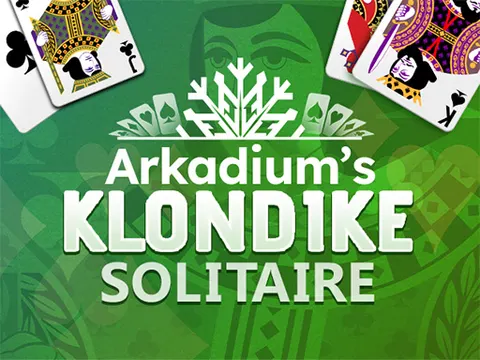
Some games include touch controls, which makes them a nice pick in tablet mode. Realistic Air Hockey lets you touch and drag your mallet, and Volley Random uses a simple tap to jump. Games built on clicks and drags, such as Block Blast, Water Sort and Arkadium's Klondike Solitaire, are also comfortable with a trackpad because they never need fast key combos.
As a rule of thumb, slower games that only need one input at a time are the easiest to play without a keyboard. Fast games that need several keys pressed together are better with physical keys. If you are not sure, try a level both ways and keep whichever feels more natural.
Each game page on Classroom 7x lists its controls, so you can check before you start whether a game uses the keyboard, the mouse or touch.
10 Games That Run Well on Chromebook
These picks are light, quick to load and fun in short sessions, which makes them a strong match for most Chromebooks.
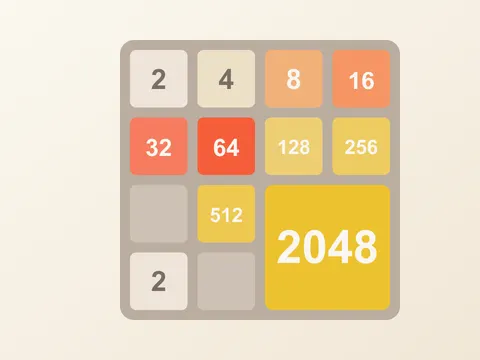
- 2048: slide and merge numbered tiles on a 4x4 grid. Calm, simple and easy to pause.
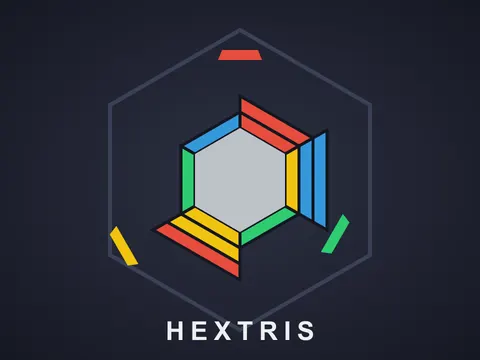
- Hextris: spin a hexagon to catch colored blocks and clear groups of three.
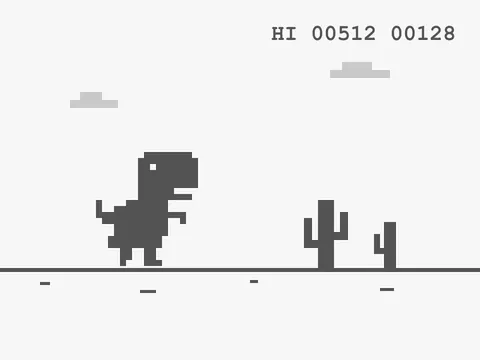
- Dino Game (T-Rex Runner): the classic Chrome dinosaur runner, jumping cacti as the speed climbs.
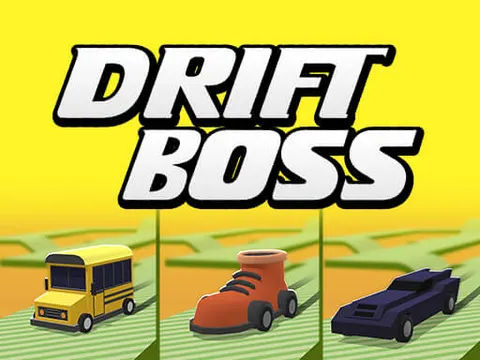
- Drift Boss: a one-button drifting game on an endless zigzag track.
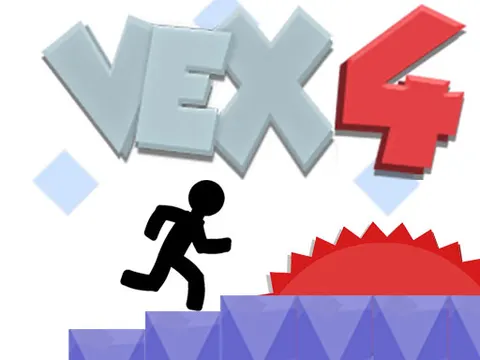
- Vex 4: a stickman platformer packed with hazards and tricky jumps.
- Tiny Fishing: cast, catch and upgrade at a relaxed pace.
- Atari Breakout: bounce a ball to smash a wall of bricks.
- Daily Wordler: guess the hidden word using color-coded clues.
- Chess Grandmaster: play against the computer or solve checkmate puzzles.
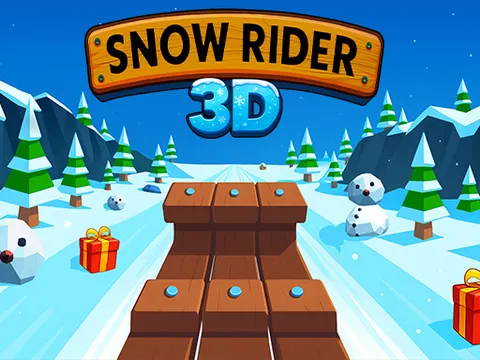
- Snow Rider 3D: steer a sled downhill, dodging obstacles and collecting gifts.
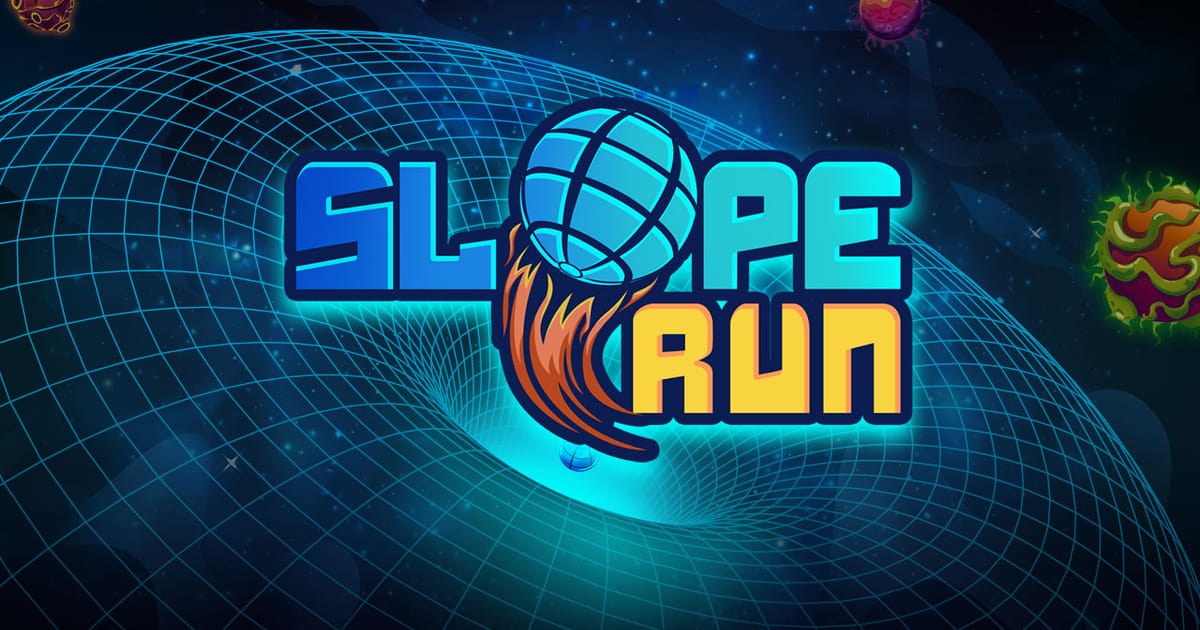
If you want something that pushes your reflexes, Slope Run is a popular 3D option. For more ideas, browse the puzzle games and arcade games collections.
What to Do When a Game Will Not Load
Sometimes a game shows a blank screen, freezes on loading or never starts. Before giving up, work through these steps in order:
- Refresh the page. A simple reload fixes most loading hiccups.
- Wait a few seconds. Larger games, especially 3D ones, may take a moment to load. Some partner games also show a short ad first.
- Close other tabs. Low memory can stop a game from starting.
- Update Chrome. An outdated browser may not support newer game features. Install any pending ChromeOS update and restart.
- Restart the Chromebook. This clears temporary issues that a refresh cannot.
- Try a different game. If one specific game will not work, another one usually will.
Some games on Classroom 7x are self-hosted, which means they are served directly from our own site. These tend to be lightweight and reliable. If you are having trouble, try lighter arcade titles or start with one of these: 2048, Hextris or the Dino Game.
If a game still will not load after these steps, it may simply not be available on your network. Pick another game rather than changing settings you are not supposed to touch.
Playing Responsibly on a School Chromebook
If you are using a Chromebook from school, remember that it belongs to your school and follows its rules. Games are a great way to unwind during breaks, at lunch or after your work is done.
- Play during free time, not during lessons.
- Follow your school's technology policy.
- Keep the volume low or use headphones.
- Choose short games when your break is short, like Clumsy Bird or Stack Ball 2.
Brain games are a good choice when you want something that feels productive. Arkadium's Sudoku and Minesweeper both reward careful thinking.
Find Your Next Chromebook Game
Chromebooks and browser games are a natural match. Keep your tabs tidy, stay up to date, click into the game window before playing, and pick lighter titles if your device feels slow.
Whenever you are ready for something new, visit the Classroom 7x unblocked games homepage to browse every category and save the games you love to your favorites.
Frequently Asked Questions
Can I play Classroom 7x games on a Chromebook?
Yes. Classroom 7x games run in the browser, so they work on Chromebooks without downloads. Lighter 2D, puzzle and arcade games usually run the smoothest, especially on older or school models.
Why do my arrow keys scroll the page instead of moving?
The game window probably does not have focus. Click once inside the game, then press your keys again. Using the fullscreen button can also help keep your input inside the game.
What should I do if a game will not load on my Chromebook?
Refresh the page, close other tabs, update ChromeOS and restart your Chromebook. If one game still will not load, try a lightweight self-hosted game like 2048, Hextris or the Dino Game.
Which games work with a Chromebook touchscreen?
Look for games that list touch controls on their page, such as Realistic Air Hockey or Volley Random. Slower games that need one input at a time are easiest without a keyboard, while fast platformers and racing games are better with keys.