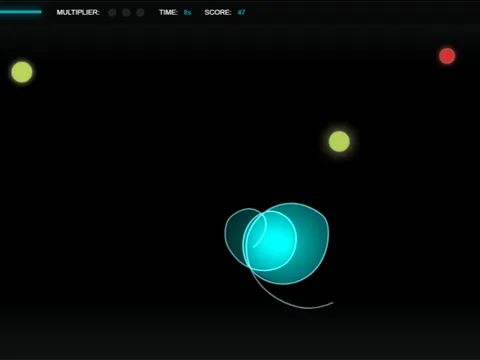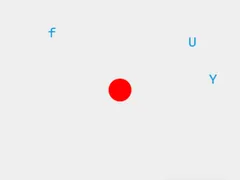
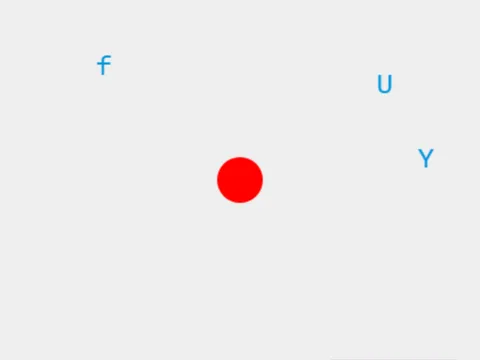
Typer Defense unblocked turns typing practice into a quick defense game. Single letters slide toward a red circle from both sides of the screen, and pressing the matching key makes each one burst into colored dots. There are no words to spell, just fast reactions. Classroom 7x hosts it on its own servers, so it runs in Chrome on a Chromebook without a download.
About Typer Defense
The original game, Typer, was a small open-source project by Berk Erol. Letters pop up at random heights on the left and right edges, then travel toward the core, each at its own speed. Each time you press the right key, one letter disappears and your score goes up by a point. Hitting a key with no matching letter on screen subtracts a point, so random key smashing backfires. Numbers, the space bar and other non-letter keys do nothing.
Your 10 lives appear in the top right corner. Each letter that reaches the circle takes one away, and the screen is wiped of letters before play resumes. If you lose your final life, a game over message appears and the game starts over from zero. Case-sensitive mode is on at the start, so capital letters require Shift. Turn it off with the button at the top, and only lowercase letters will appear, making Shift unnecessary.
How to Play Typer Defense
- Click the game once so it can read your key presses, then watch letters enter from both sides.
- Press the matching key to destroy a letter before it reaches the red circle in the middle.
- Hold Shift for capital letters while case-sensitive mode is on, or click the button to turn it off.
- Avoid pressing keys for letters that are not on screen, since each wrong key costs a point.
- Press Esc to pause when you need a break, and try to hold on to all ten lives.
Typer Defense Controls
| Input | Action |
|---|---|
| Letter keys | Destroy the matching letter |
| Shift + letter | Type a capital letter |
| Esc | Pause or resume |
| Click the Case sensitive button | Turn case sensitivity on or off |
How to Play Typer Defense on PC & Chromebook
Typer Defense is made for a real keyboard, so a Chromebook or laptop is the perfect place to play. The game reads each key you press and matches it to letters on screen. Click the game once after it loads so your typing goes to the game. The play area resizes to fit, with the red core always in the center.
- Click inside the game area so it receives your key presses.
- Rest your fingers on the home row and watch both edges of the screen.
- Press each letter's key before it reaches the red core.
- Press Esc to pause, and click the Case sensitive button to change modes.
Desktop tip: Look at the screen, not your hands. It may feel slow at first, but keeping your eyes up lets you spot fast letters sooner and builds real typing skill.
How to Play Typer Defense on Mobile
Because Typer Defense needs a physical keyboard, phones and tablets are a poor fit for it. It reacts only to real key presses, and a touch device will not show its on-screen keyboard for this game. If you are reading this on a phone, save the page and return later on a Chromebook, laptop or desktop computer.
- Open Classroom 7x on a Chromebook, laptop or desktop computer.
- Find Typer Defense and open its game page.
- Click the game once, then start typing the letters you see.
Mobile tip: A tablet with an attached keyboard may work, but a Chromebook or laptop is the most reliable choice for this game.
Tips and Tricks
- Target whichever letter is nearest the core first. Since letters travel at their own speeds, a slow one still close to the edge can wait.
- If two copies of one letter are on screen, press that key twice. Each press clears the most recent copy, not the one closest to the core.
- Turn off case sensitivity while you learn the keyboard. Once you can find letters quickly, switch it back on to practice Shift.
- Keep your fingers on the home row between letters. Returning to the same starting spot makes every key easier to reach without looking.
- Do not guess at letters you have not read yet. A wrong key costs a point, so a short pause is better than a miss.
Game Info
| Game | Typer Defense |
|---|---|
| Developer | Berk Erol |
| Genre | Learning, Casual |
| Players | Single player |
| Works on | Chromebook, PC and Mac (keyboard required) |
| Price | Free, no sign-up |
| Hosting | Served from Classroom 7x's own servers |
| License | GPL-3.0 (original source, license, credits) |
Typer Defense FAQ
What happens when a letter hits the red circle?
One of your 10 lives is lost, the words START AGAIN appear, and every letter on screen is wiped away. Once your final life runs out, GAME OVER shows and your score starts again from zero.
Does the game get faster over time?
No. The pace stays steady through the whole run. The challenge is staying calm and accurate over a long session, since one slip can let a fast letter reach the core.
Can I play on a phone or tablet?
Not in a useful way. It only responds to presses on a physical keyboard, and touch screens on phones and tablets will not bring up their keyboard for it. Play on a Chromebook, laptop or desktop computer with a keyboard instead.