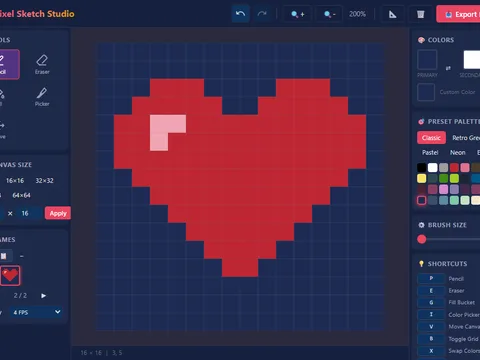
Some days you want to make something instead of beat something. Pixel Sketch Studio unblocked is a small drawing tool for pixel art, with a grid, a few palettes and classic tools like a pencil and fill bucket. There is no score or timer. It runs on Classroom 7x right inside Chrome, so you can sketch a sprite without installing an art program.
About Pixel Sketch Studio
Pixel Sketch Studio started as PixelCraft, an open-source editor by gitstq. You begin by choosing a canvas size, either a preset from 8x8 up to 64x64 or any custom size from 4 to 128 squares per side. Five palettes are built in: Classic, Retro Green, Pastel, Neon and Earth. A custom color picker covers anything else. The pencil, eraser, fill bucket, color picker and move tool sit in a Tools panel, and the brush can grow from 1 to 8 pixels.
The editor can also animate. In the Frames panel you can add a blank frame, copy the current one, or delete it, then press Play to loop them at any speed from 2 to 24 frames per second. The editor remembers as many as 100 undo steps while you work. When you finish, export a PNG of a single frame, or a sprite sheet if you have several. Your drawing is not saved in the browser, so export before you close the page.
How to Play Pixel Sketch Studio
- Choose a canvas size from the presets, or type your own width and height up to 128.
- Pick a color from one of the five palettes, or use the custom color picker.
- Draw with the pencil, fill closed shapes with the bucket, and fix mistakes with the eraser.
- Add or copy frames in the Frames panel and press Play to preview your animation.
- Click Export PNG, or press Ctrl+S, to save your picture or sprite sheet to your device.
Pixel Sketch Studio Controls
| Input | Action |
|---|---|
| Click or drag | Draw with the current tool |
| P / E / G / I / V | Pencil, eraser, fill, color picker, move tool |
| Right-click or Ctrl+click a swatch | Set the second color |
| X | Swap the main and second color |
| [ and ] | Make the brush smaller or larger |
| Mouse wheel / middle-button drag | Zoom and pan the view |
| Ctrl+Z / Ctrl+Y / B / Ctrl+S | Undo, redo, toggle grid, export |
| Tap or drag (touch screens) | Draw, pick tools and choose colors with a finger |
How to Play Pixel Sketch Studio on PC & Chromebook
A Chromebook or laptop is the most comfortable way to use Pixel Sketch Studio. The bigger screen shows the canvas, palette and frame panel side by side, and single-key shortcuts switch tools instantly. A mouse gives you the finest control, with right-click setting a second color and the wheel zooming in and out. A touchpad works fine for small canvases.
- Open the editor and pick a canvas size to start.
- Choose a palette color and draw with the pencil (P).
- Use G to fill, E to erase and I to copy a color from the canvas.
- Press Ctrl+S to export your finished image as a PNG.
Desktop tip: On a touchpad, two-finger scrolling may zoom the canvas. Use the zoom buttons instead if the view jumps around too much.
How to Play Pixel Sketch Studio on Mobile
You can draw in Pixel Sketch Studio with your finger on a phone or tablet. Tapping and dragging paints pixels, and you can pick tools and colors by tapping them. On small phone screens, though, the panels turn into narrow scrolling strips that sit above and below the canvas, which leaves little room. A tablet, Chromebook or laptop is more comfortable for longer projects.
- Open the editor and choose a small canvas, such as 16x16.
- Tap a color, then tap or drag on the canvas to draw.
- Tap the zoom buttons to see details, and use the Move tool to pan.
- Tap Export PNG when you are done so your work is saved.
Mobile tip: Stick to smaller canvases on a phone. Each pixel stays big enough to tap accurately without zooming in all the time.
Tips and Tricks
- Draw the outline first, then fill the inside with the bucket. The fill stops at any different color, so close every gap before you click.
- Make animation easier by copying a finished frame and changing only a few pixels. Small moves like a blink look smooth at low speeds.
- Put your outline color in the second color slot. Then press X to flip between outline and fill without returning to the palette.
- Try the eight-color Retro Green palette for tiny sprites. A short color list keeps small pictures clean and easy to read.
- Press B now and then to hide the grid. Seeing the drawing without lines shows whether it reads well as a whole picture.
Game Info
| Game | Pixel Sketch Studio |
|---|---|
| Developer | gitstq |
| Genre | Casual |
| Players | Single player |
| Works on | Chromebook, PC and Mac (touch screens work, mouse is more precise) |
| Price | Free, no sign-up |
| Hosting | Served from Classroom 7x's own servers |
| License | MIT (original source, license, credits) |
Pixel Sketch Studio FAQ
Will my drawing still be here tomorrow?
No. Nothing is stored in your browser, so a reload or closed page wipes the canvas. To keep a drawing, export it as a PNG first.
Can I make a transparent background?
Not in this editor. New canvases start white, and the eraser paints white instead of clearing pixels. If you need transparency, remove the background later in a different image program.
What do I get when I export an animation?
With two or more frames, the export lays every frame out in a grid on one sprite sheet. A single frame becomes a regular PNG. Either way, the file uses double the pixel size you see on screen.